 Krater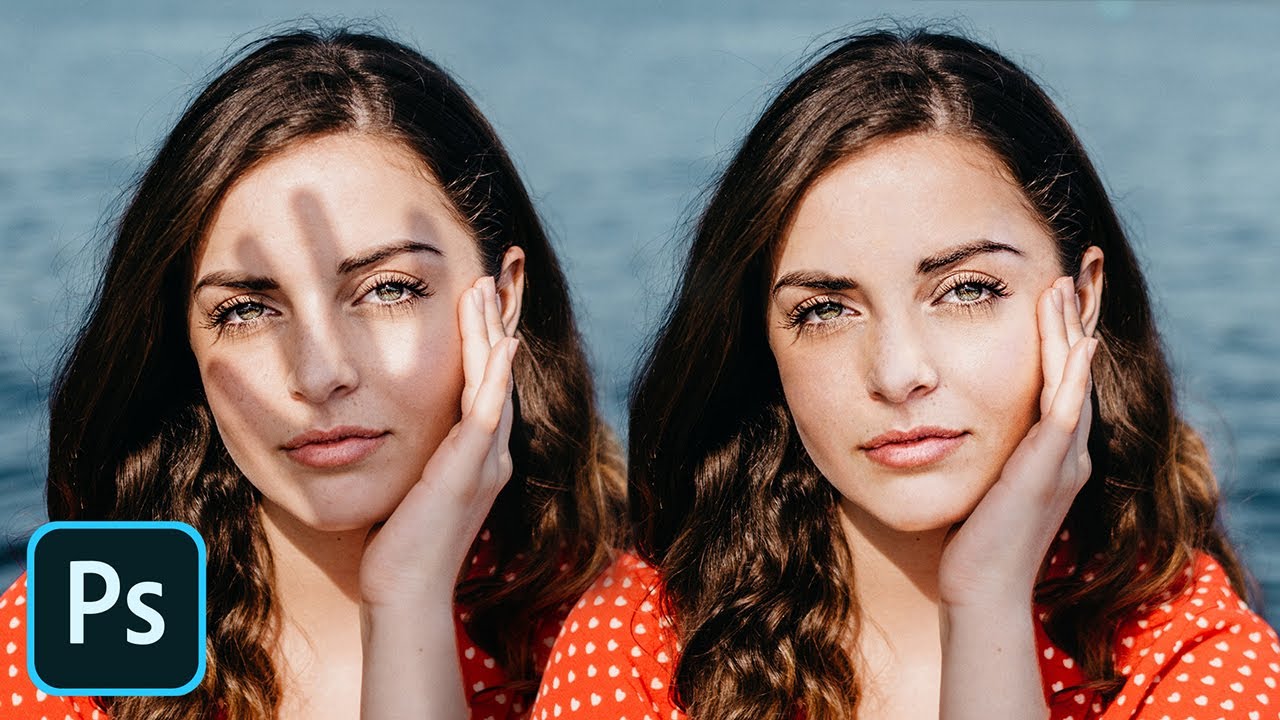
Remove Shadow 20X FASTER in Photoshop! (Updated)
A video on YouTube. In Photography & Film, a Krater category.
Watch on YouTubeSummary by Krater
The video demonstrates a fast technique in Adobe Photoshop to remove shadows from portraits by making a rough selection, applying a curves adjustment layer, setting blend mode to color, and refining the edges.
From the video
Answers: How to remove shadows in Photoshop fast?
- shadow removal
- Adobe Photoshop techniques
- curves adjustment layer
- layer masks
- blend modes in Photoshop
What it concludes
- Shadows create even darkness throughout the shadow area, so lightening the whole selected shadow area with curves is more efficient than painting over it piece by piece.
- Applying a solid gray layer set to the color blend mode temporarily removes distracting colors while working on shadow removal.
- Using the smudge tool on low opacity is an effective way to soften and match harsh shadow edges.
- Using a soft brush with low flow on a layer mask allows you to smoothly blend the edges of the shadow removal curves layer.
Rate it, review it and add it to your lists in Krater.
Titles and thumbnails from YouTube. Krater isn't affiliated with, endorsed by or sponsored by YouTube or Google.