 Krater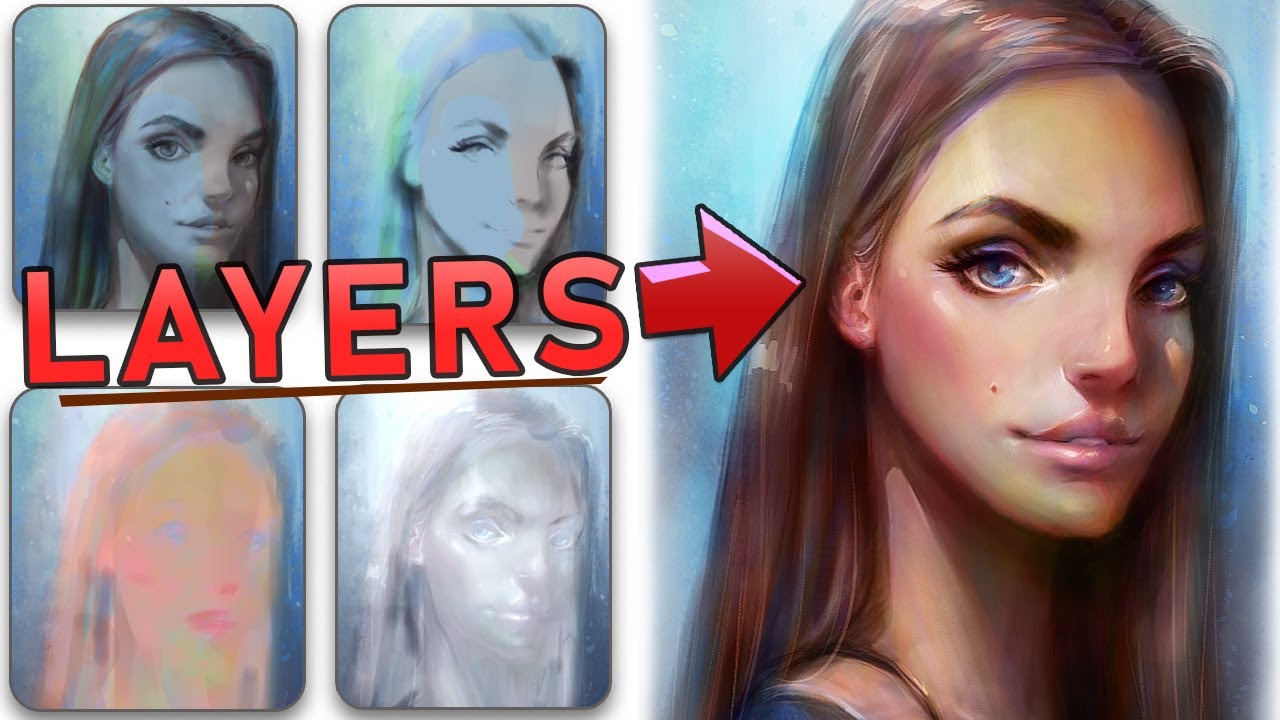
How to render digital art using layers - BRUSHES included - Beginner friendly tutorial
A video on YouTube. In Art & Drawing, a Krater category.
Watch on YouTubeSummary by Krater
A digital painting demonstration in Clip Studio Paint showing how to build up a portrait using separate layers for line art, background, shadows, ambient occlusion, flat colors, and highlights. The narrator explains lighting principles like form shadows, cast shadows, half-tones, and ambient occlusion using a 3D sphere and an Asaro head model.
From the video
Answers: How do you paint portraits using layers in Clip Studio Paint?
- Digital painting in Clip Studio Paint
- Layer modes like multiply and overlay
- Form shadow and cast shadow
- Half-tone values
- Ambient occlusion in painting
- Flat color mapping
- Lighting planes of the head
What it concludes
- Using multiply layer mode for shadows ensures only rich darks show through the underlying layers.
- Maintaining a gap between light and shadow value families clarifies lighting in a painting.
- Light family values should be given more real estate than shadow family values.
- Ambient occlusion represents the deepest pockets of shadow where ambient light is blocked.
- Overlay mode can affect both color and value, making it easier to build highlights on top of established shadows.
Rate it, review it and add it to your lists in Krater.
Titles and thumbnails from YouTube. Krater isn't affiliated with, endorsed by or sponsored by YouTube or Google.