 Krater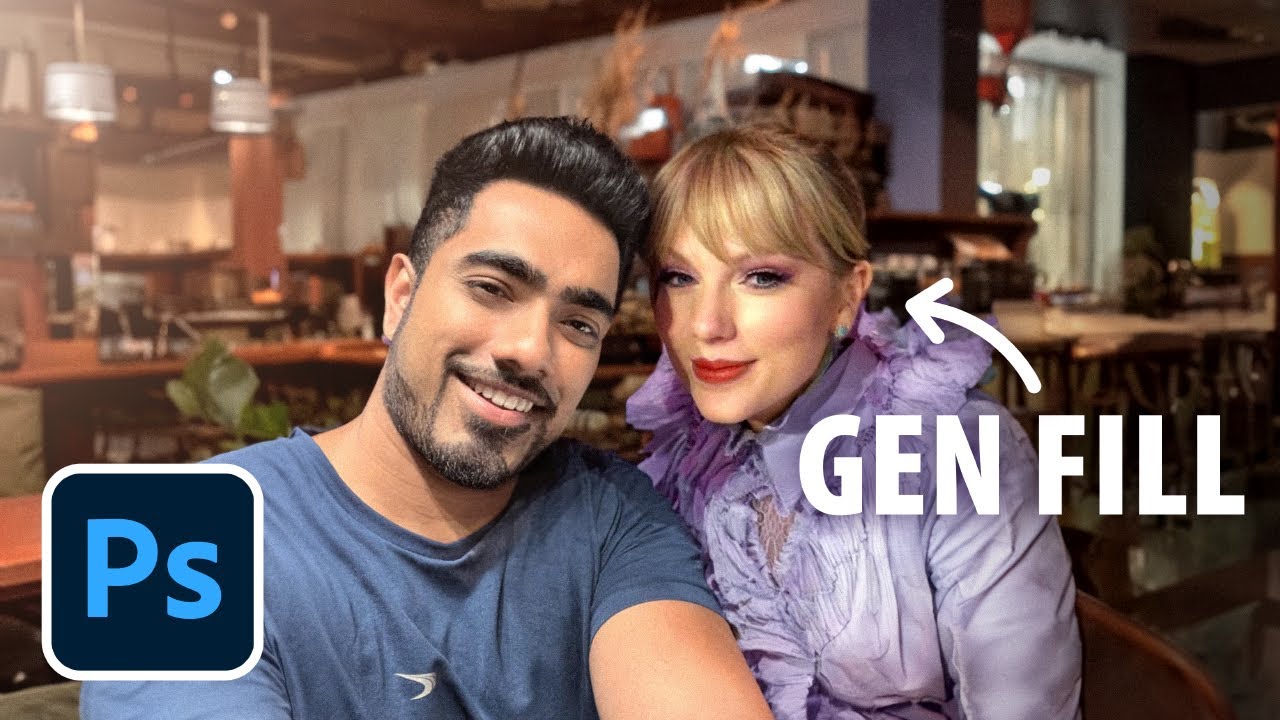
Photoshop Generative Fill - 20 EPIC Uses, SUPERFAST!
A video on YouTube. In Photography & Film, a Krater category.
Watch on YouTubeSummary by Krater
A demonstration of 14 practical use cases of Generative Fill in Adobe Photoshop Beta, ranging from combining photos and removing distractions to changing skies, clothing, reflections, and adding hair or muscles.
From the video
Answers: How do I use Generative Fill in Adobe Photoshop Beta?
- Adobe Photoshop Beta Generative Fill tutorial
- Combining photos with AI
- Expanding images with generative AI
- Removing people and objects from photos
- Adding clothing and jewelry with AI
- Creating realistic reflections and shadows
- Changing backgrounds and skies in Photoshop
- Generating hair and muscle transformations
What it concludes
- Generative Fill can bridge two photos by matching lighting and blending edges when a small portion of the original image meat is left unselected.
- Generative Fill is available only in Photoshop Beta via the Creative Cloud desktop app.
- If Generative Fill is greyed out or age-restricted, users can verify their date of birth in their Adobe Creative Cloud account.
- Generative Fill can create reflections of castles and buildings on lakes or water bodies.
- Using manual adjustment layers alongside Generative Fill is essential for color-matching and blending AI-generated elements into complex scenes like celebrity photos.
Rate it, review it and add it to your lists in Krater.
Titles and thumbnails from YouTube. Krater isn't affiliated with, endorsed by or sponsored by YouTube or Google.