 Krater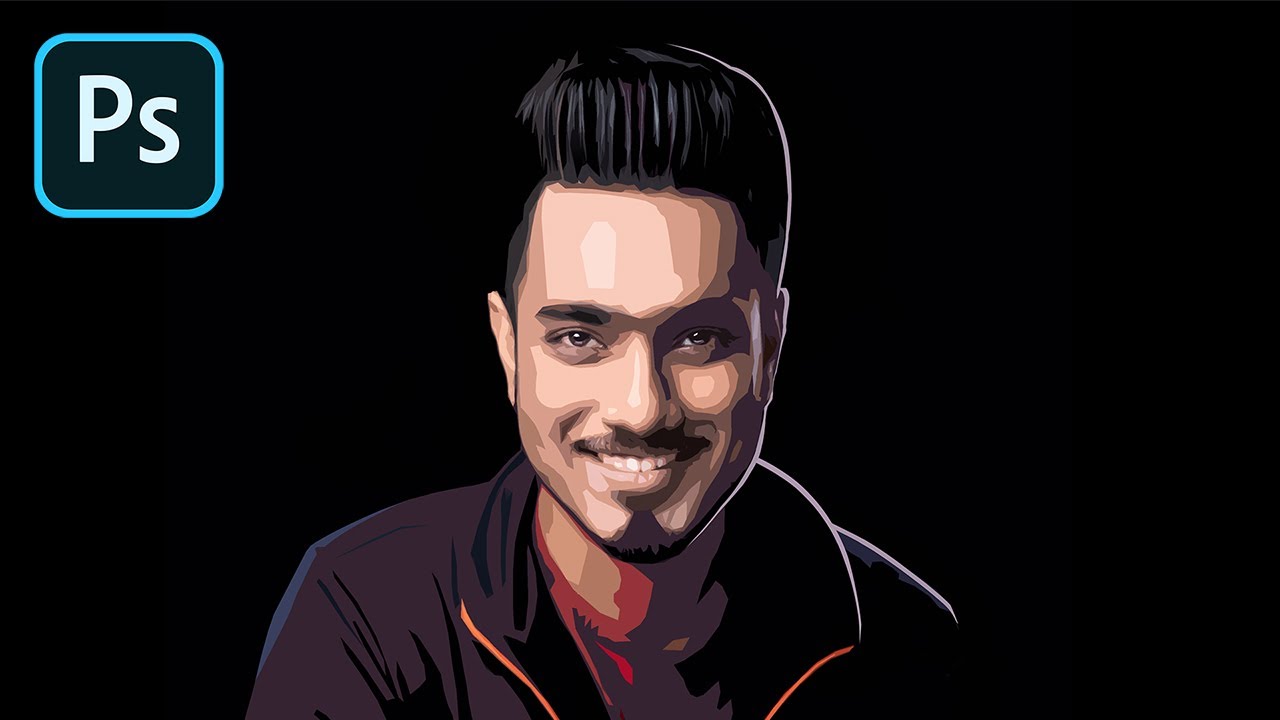
The “Cartoon Filter” in Photoshop!
A video on YouTube. In Photography & Film, a Krater category.
Watch on YouTubeSummary by Krater
This tutorial explains how to convert a portrait photograph into a stylized illustration using Adobe Photoshop with a single Cutout filter, followed by manual paint correction for color, highlights, and shadows.
From the video
Answers: How do I turn a portrait into an illustration in Photoshop with one filter?
- Photoshop cutout filter illustration technique
- Smart objects and smart filters in Photoshop
- Layer masks for selective retouching
- Paint correction for digital illustration
- Adding highlights and shadows in Photoshop
- Curves and duotone grading in Photoshop
What it concludes
- Using smart filters allows you to go back and change filter values later or copy filters between smart object layers.
- Converting a 16-bit image to 8-bit is necessary because some filters only work with 8-bit images.
- Adjusting edge simplicity, number of levels, and edge fidelity in the Cutout filter controls the level of detail and smoothing in the illustration.
- Applying layer masks allows you to selectively add or remove details in different areas of the illustration.
- Adding paint correction layers helps simplify skin shading and remove unwanted square shapes.
- Curves and gradient maps can be used at the final stage for contrast adjustment and duotone effects.
Rate it, review it and add it to your lists in Krater.
Titles and thumbnails from YouTube. Krater isn't affiliated with, endorsed by or sponsored by YouTube or Google.