 Krater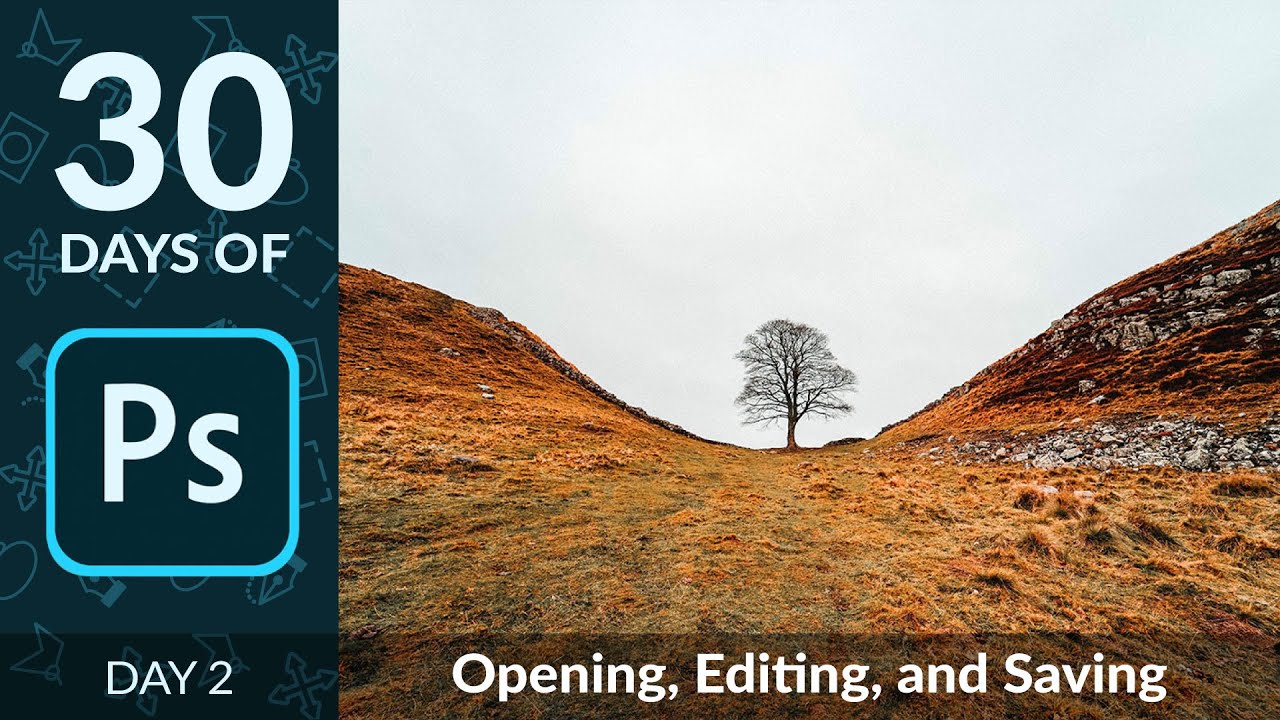
Opening, Editing & Saving in Photoshop | Day 2
A video on YouTube. In Photography & Film, a Krater category.
Watch on YouTubeSummary by Krater
This tutorial explains how to open, edit, and save images non-destructively in Adobe Photoshop, covering layer management, object removal, sky replacement, and exporting as PSD, JPEG, and transparent PNG files.
From the video
Answers: How do I open, edit, and save images in Adobe Photoshop?
- Opening sample images in Adobe Photoshop
- Non-destructive editing with layers
- Removing an object with the Spot Healing Brush tool
- Replacing a sky and blending with multiply mode
- Saving layered PSD and TIFF files
- Saving JPEG files for web
- Saving transparent PNG files with Color Range selection
What it concludes
- Non-destructive editing ensures you never work directly on your original image.
- PSD and TIFF file formats preserve layers and allow you to return to your edits at any time.
- JPEG files do not support layers and are best for web use and client delivery.
- PNG files support transparent backgrounds, making them ideal for logos and icons.
Rate it, review it and add it to your lists in Krater.
Titles and thumbnails from YouTube. Krater isn't affiliated with, endorsed by or sponsored by YouTube or Google.